

How to Activate IPTV on Smart TV Using IPTV Smarters Pro, IBO Player, and Ibo Player Pro
Activating IPTV on a Smart TV is simple when you use the right application and the correct login details. In this guide, we will explain how to activate IPTV using three popular IPTV player apps: IPTV Smarters Pro official website, IBO Player official website, and Ibo Player Pro official website.
These apps do not provide TV channels by themselves. They are media player applications that allow you to use your own IPTV playlist or IPTV subscription.
Before starting, make sure you already have your IPTV details. If you do not have a subscription yet, you can get an IPTV abonnement from Streambe or request an IPTV trial test.
This tutorial is useful for users who want to activate IPTV on LG Smart TV, Samsung Smart TV, Android TV, Fire Stick, Google TV, or other supported devices.
Table of Contents
- Before You Start
- How to Activate IPTV Smarters Pro
- How to Activate IBO Player
- How to Activate Ibo Player Pro
- Common IPTV Activation Problems
- Final Tips
Before You Start
Before activating IPTV on your Smart TV, your provider will usually send you one of these login formats:
- Xtream Codes API: username, password, and server URL.
- M3U URL: one playlist link that contains your IPTV channels.
- Device ID, Device Key, or MAC Address: used by apps like IBO Player and Ibo Player Pro.
If you are using Streambe, your IPTV login details are sent after your order or trial activation.
Need help? Contact Streambe: IPTV activation help.
Important note: IPTV player apps do not sell or include channels. They only allow you to play your own playlist or subscription.
How to Activate IPTV Smarters Pro
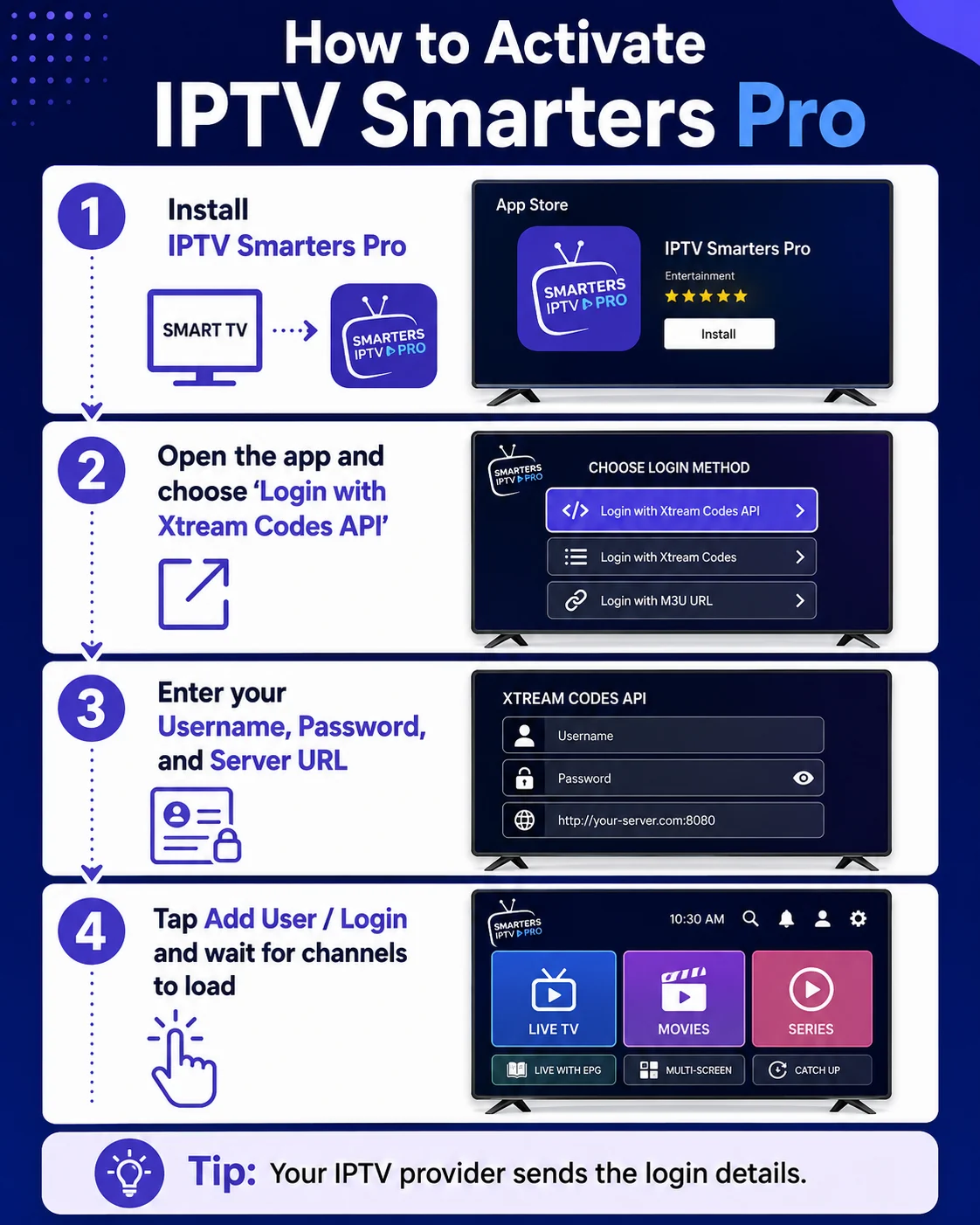
IPTV Smarters Pro is one of the easiest IPTV apps to use because you can log in directly with your IPTV details. It usually works with Xtream Codes API, which means you need a username, password, and server URL.
need iptv abonnement in belgie
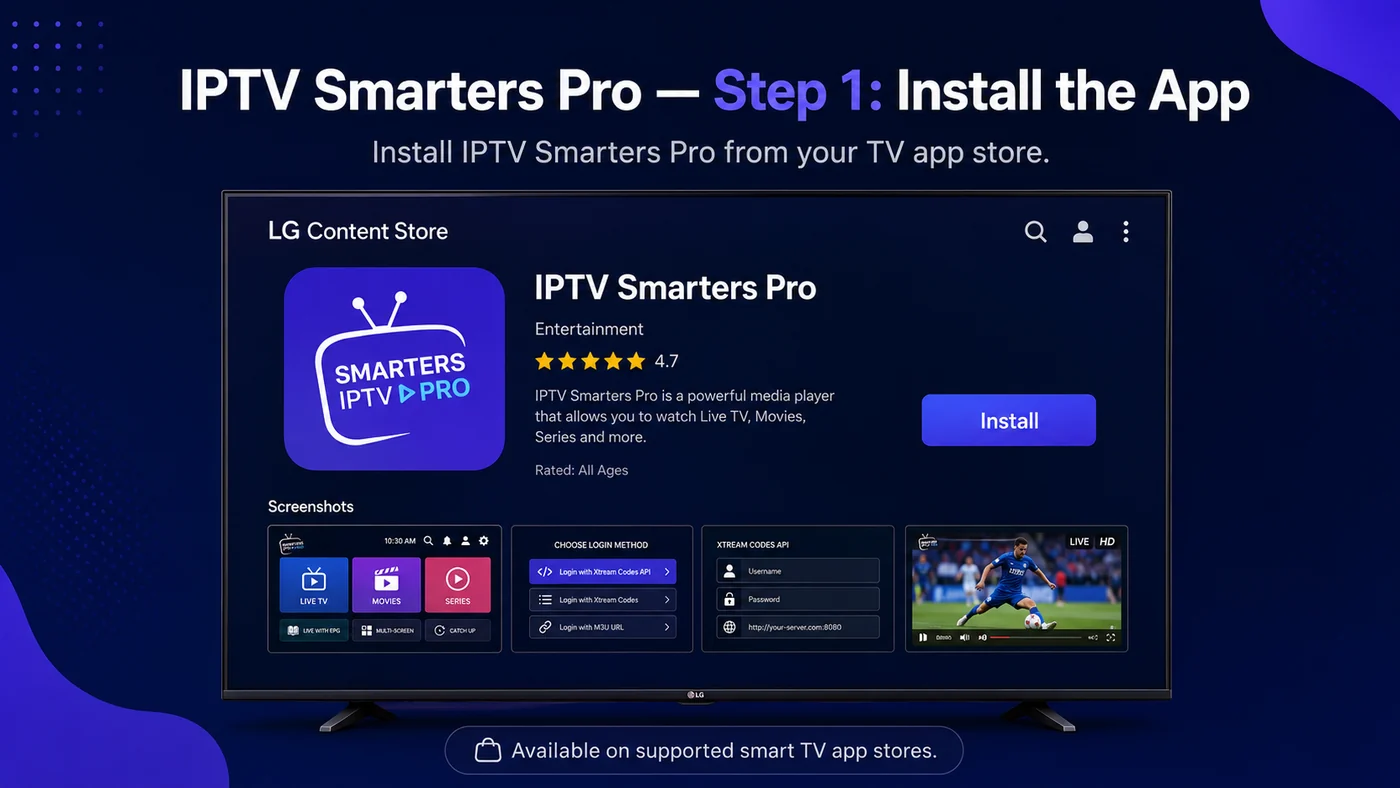
Step 1: Install IPTV Smarters Pro
Open the app store on your Smart TV and search for IPTV Smarters Pro. If the app is available in your region, install it and wait for the download to finish.
If the app is not available on your LG TV or Smart TV store, you can use another device such as an Android TV box, Fire Stick, or Google TV device.
Step 2: Choose the Login Method
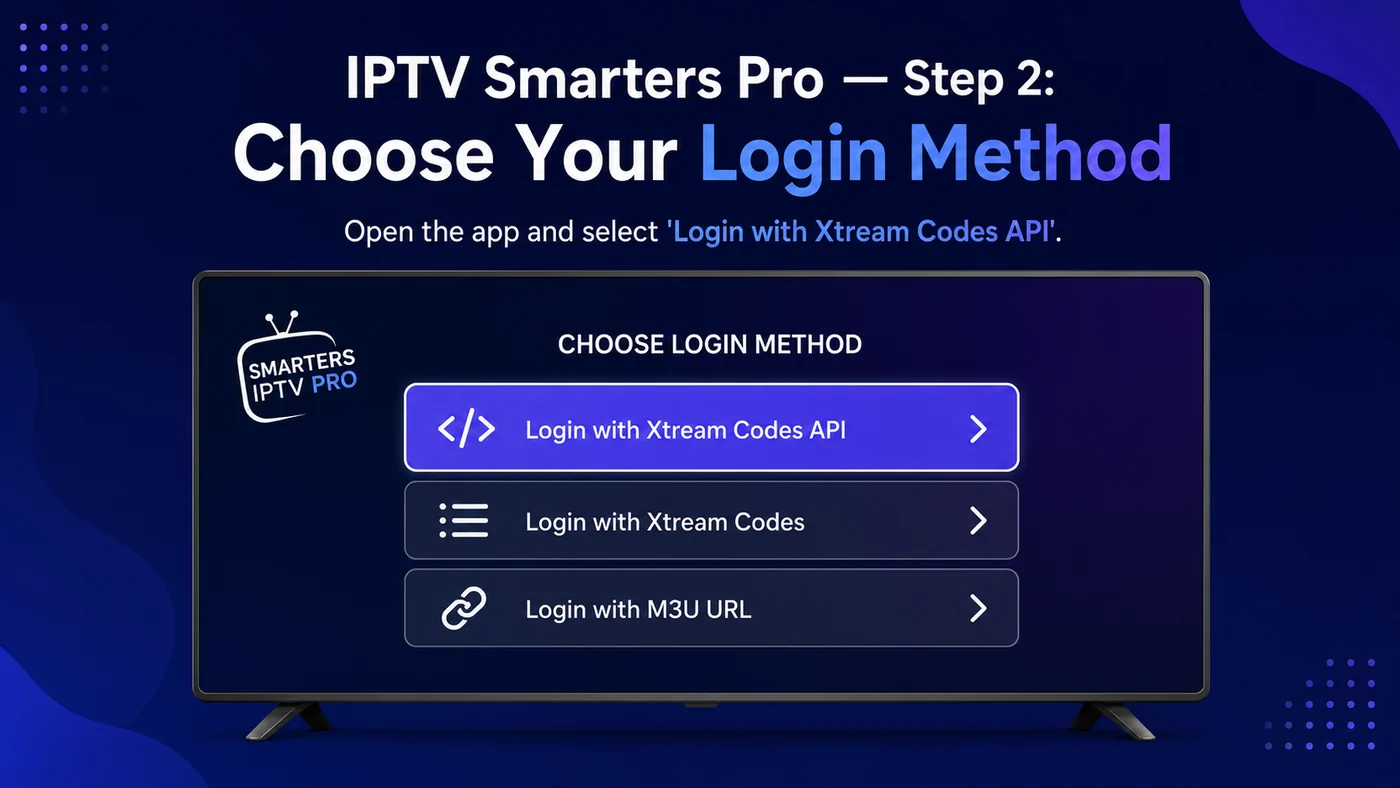
After installing the app, open IPTV Smarters Pro. On the login screen, choose:
Login with Xtream Codes API
This is the recommended option if your IPTV provider gives you a username, password, and server URL.
Step 3: Enter Your IPTV Details
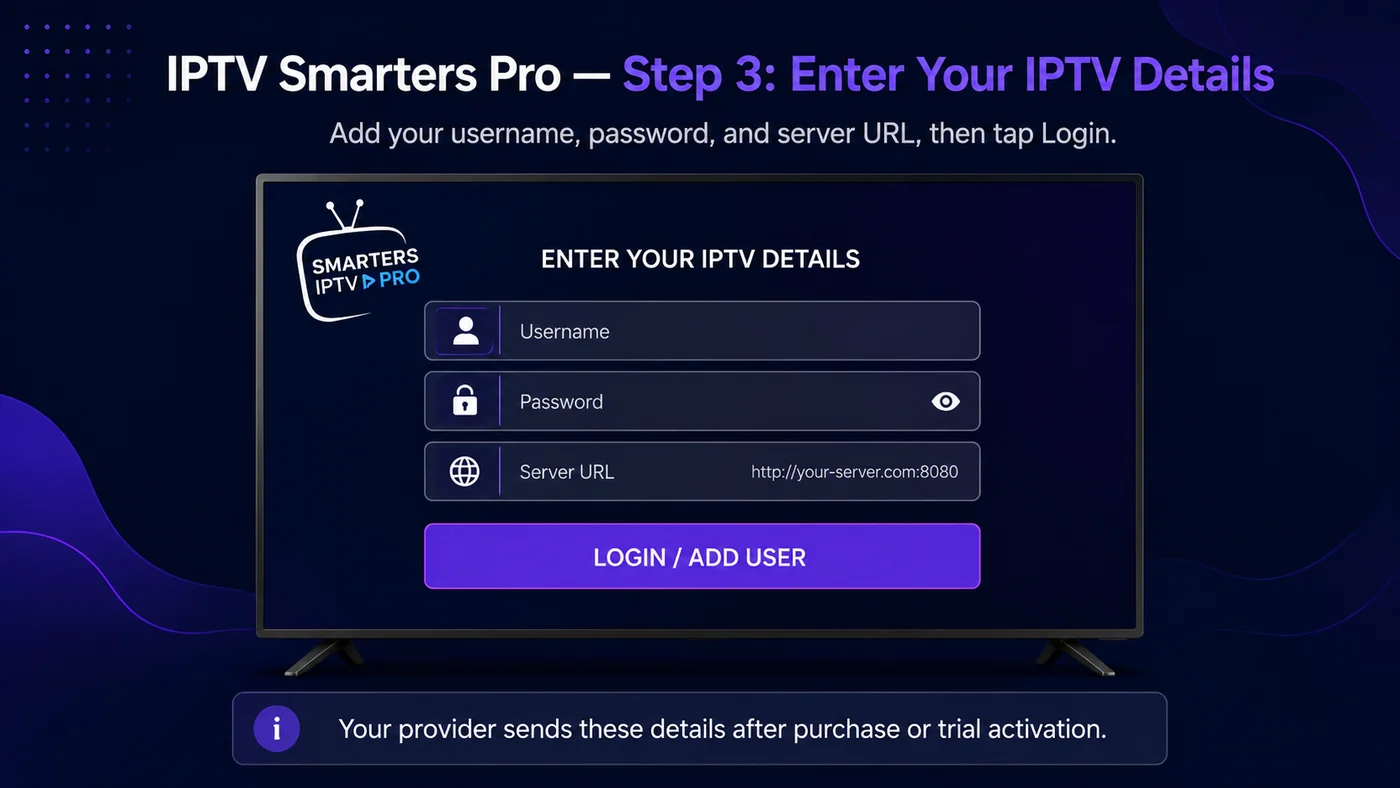
Now enter the details provided by your IPTV provider:
- Username
- Password
- Server URL
After entering the information, click Add User or Login.
Make sure you copy the details exactly as received. Even one missing letter, number, or symbol can stop the app from working.
Step 4: Wait for Channels to Load
After login, IPTV Smarters Pro will start loading your content. You should see sections such as:
- Live TV
- Movies
- Series
- TV Guide / EPG, if available
This may take a few seconds depending on your internet connection and the size of your playlist.
How to Activate IBO Player
IBO Player works differently from IPTV Smarters Pro. In most cases, you do not enter your IPTV login directly inside the TV app. Instead, you need to copy your Device ID and Device Key, then add your playlist through the IBO Player website.
Need a playlist for IBO Player?
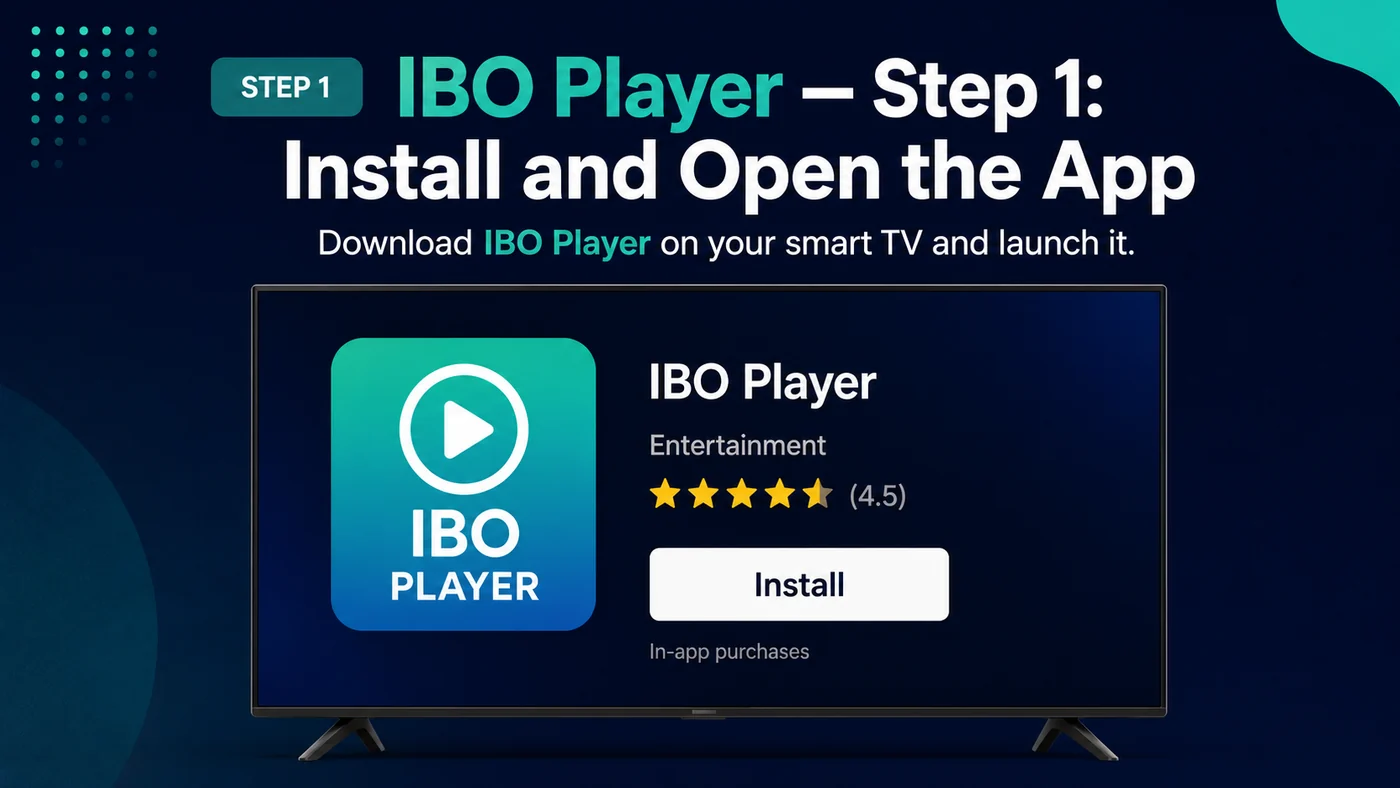
Step 1: Install and Open IBO Player
Open the app store on your Smart TV and search for IBO Player. Install the app, then open it.
Once the app launches, it will display your device information on the screen.
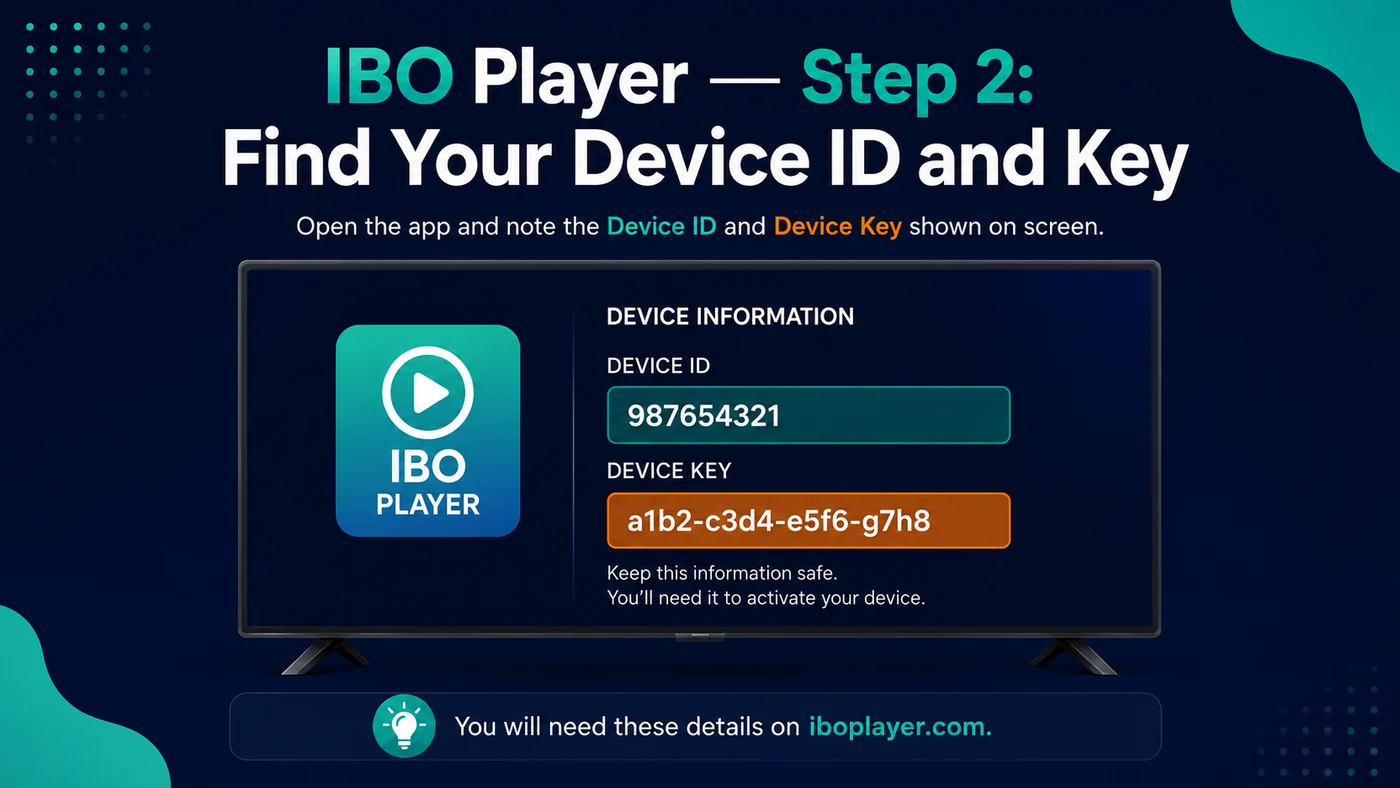
Step 2: Find Your Device ID and Device Key
When you open IBO Player, you should see a screen showing:
- Device ID
- Device Key
Write down these details or take a photo of the screen with your phone. You will need them to connect your IPTV playlist to the app.
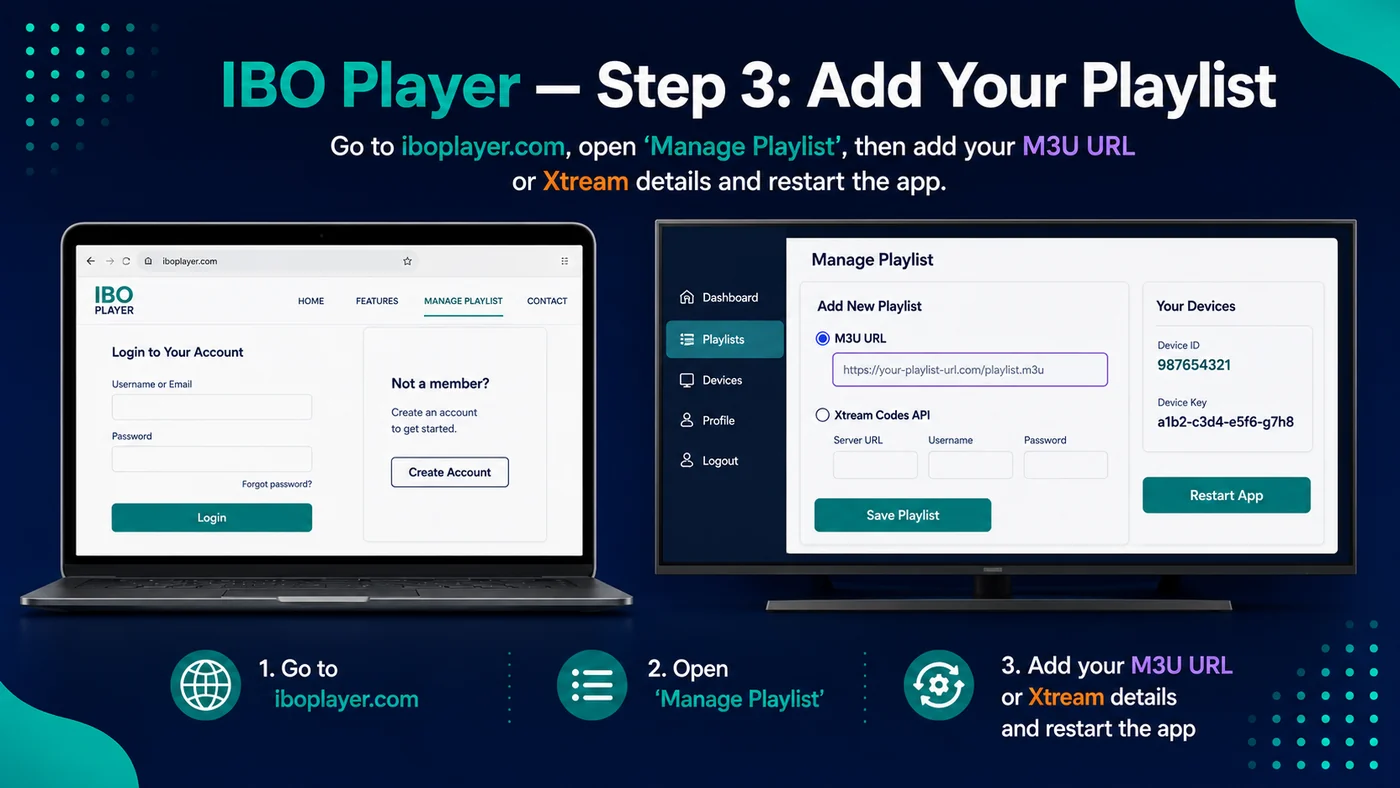
Step 3: Open the IBO Player Website and Add Your Playlist
On your phone, tablet, or computer, visit the IBO Player official website.
Go to the playlist management section. Then enter your Device ID and Device Key.
After that, add your IPTV playlist using one of these methods:
- M3U URL: paste your playlist link.
- Xtream Codes API: enter server URL, username, and password.
If your provider gave you an M3U link, paste it in the M3U field. If your provider gave you Xtream Codes details, enter your server URL, username, and password.
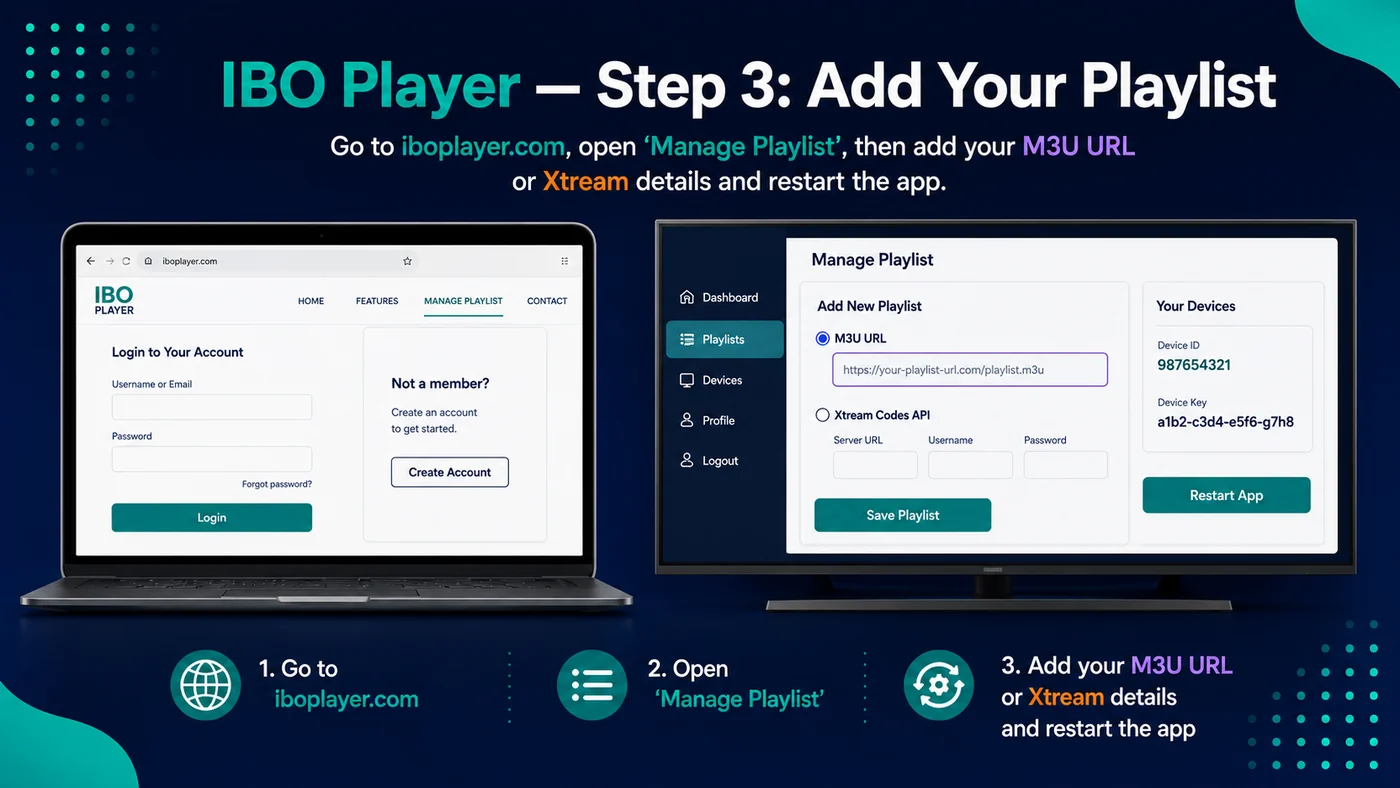
Step 4: Save Playlist and Restart IBO Player
After adding your playlist, save the details on the website.
Then go back to your TV and restart IBO Player. Your channels should appear after the app refreshes.
If the channels do not appear immediately, close the app completely and open it again.
How to Activate Ibo Player Pro
Ibo Player Pro is another popular IPTV player application. Like IBO Player, it usually requires device information before you can add your playlist online.
Need IPTV details for Ibo Player Pro?
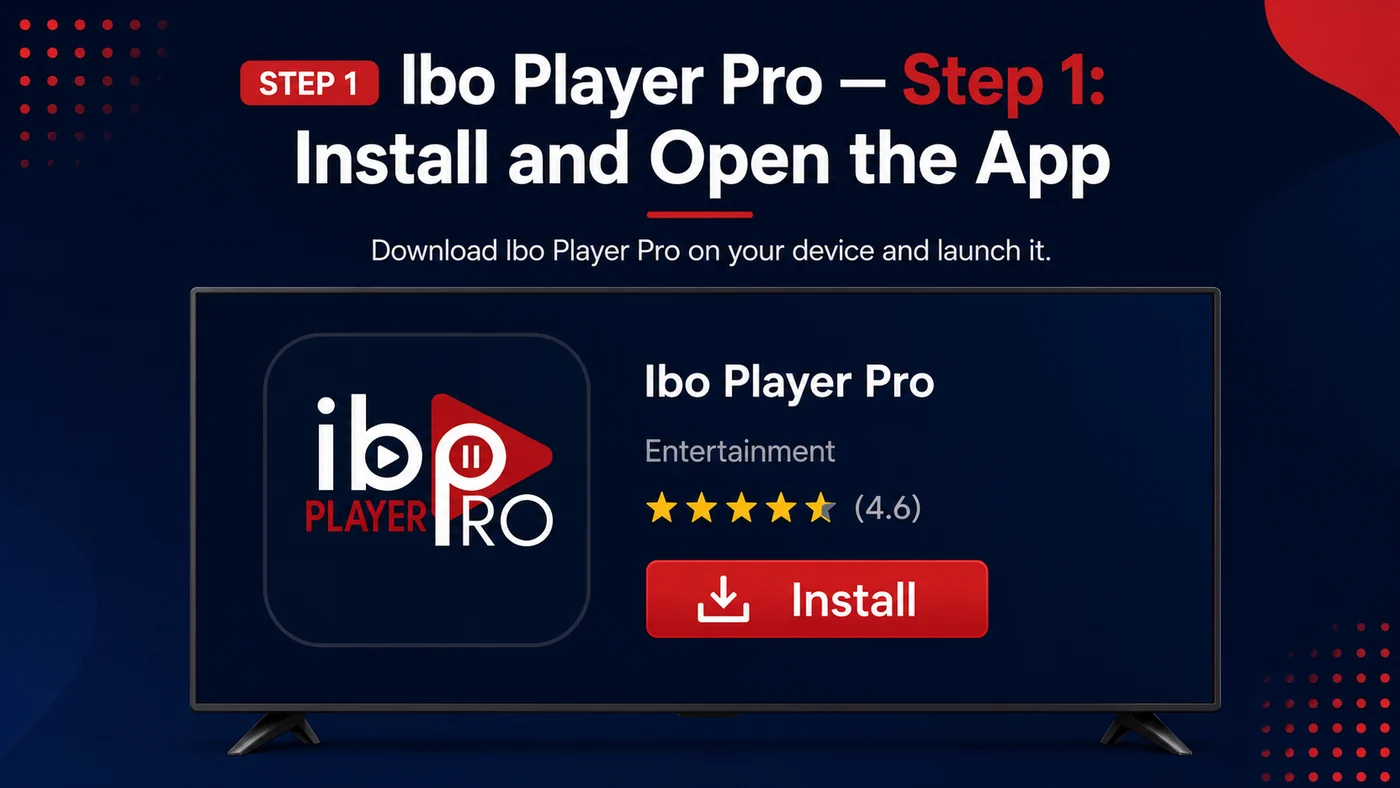
Step 1: Install and Open Ibo Player Pro
Open your Smart TV app store and search for Ibo Player Pro. Install the app and launch it on your TV.
Once opened, the app should display your device information.
Step 2: Note Your Device ID or MAC Address
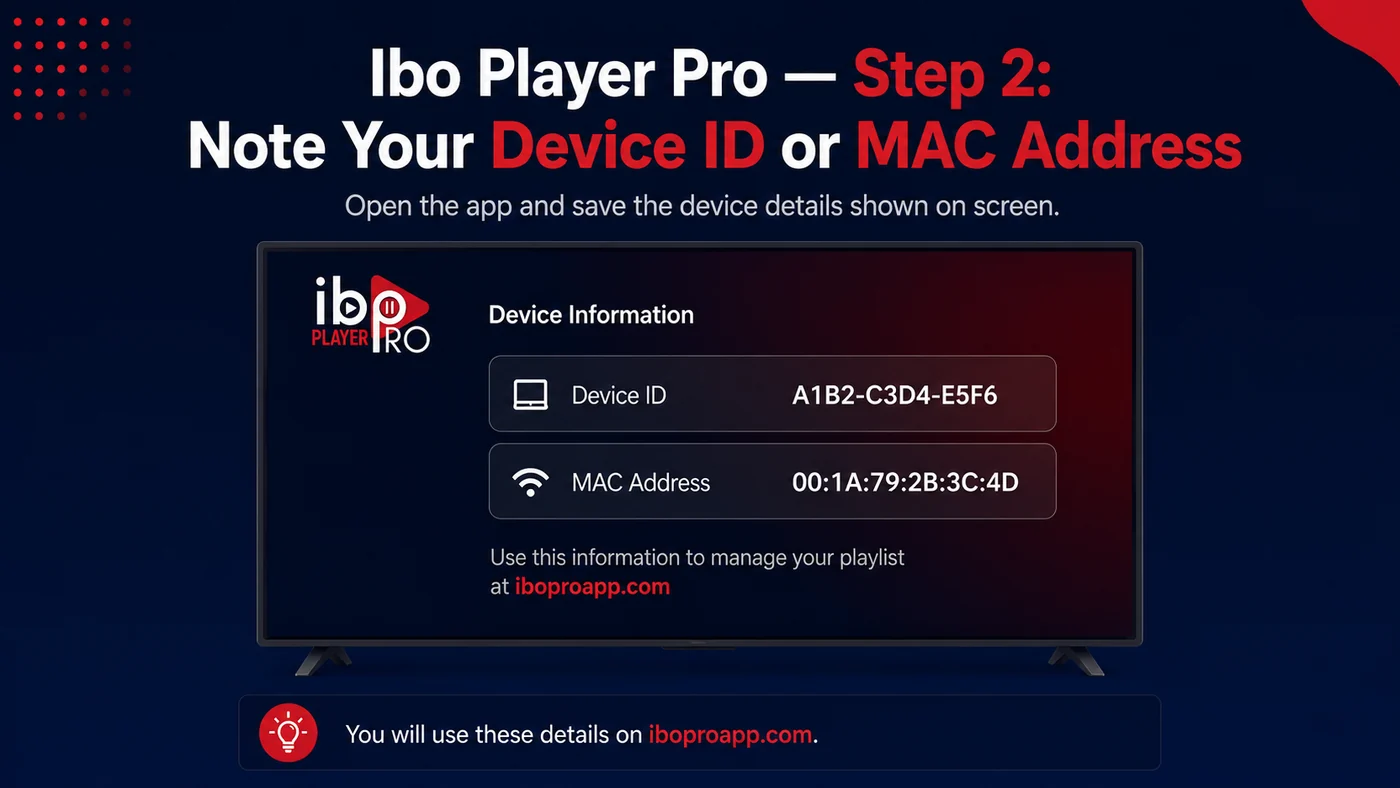
On the first screen, Ibo Player Pro may show one or more of the following:
- Device ID
- Device Key
- MAC Address
Save this information carefully. You will use it to add your IPTV playlist through the official Ibo Player Pro website.
Step 3: Manage Your Playlist on Ibo Player Pro Website
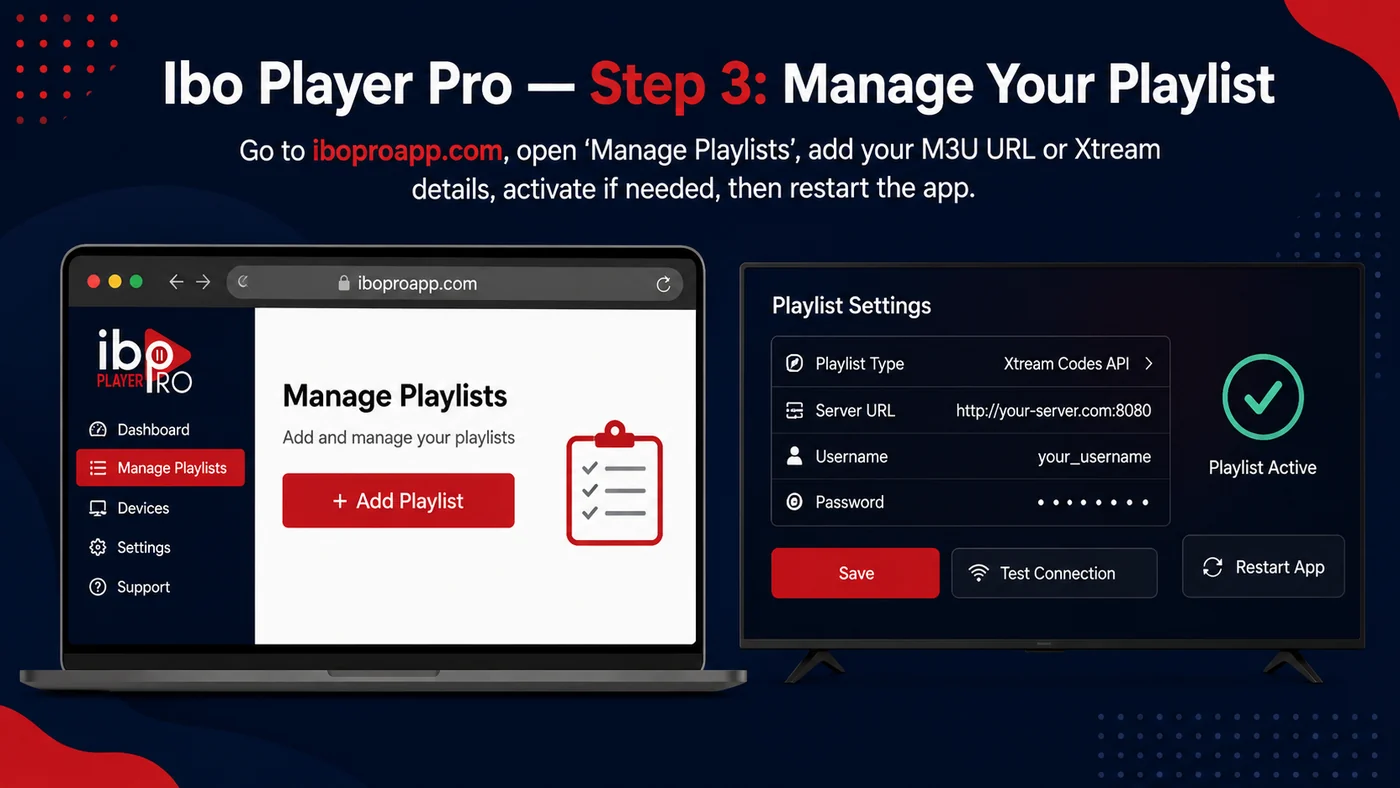
On your phone, tablet, or computer, open the Ibo Player Pro official website and go to the Manage Playlists section.
Enter your device information, such as Device ID or MAC Address, depending on what the app asks for.
Step 4: Add Your Playlist, Save, and Restart Ibo Player Pro
Now add your IPTV details.
You can use:
- M3U URL: paste your playlist link.
- Xtream Codes API: enter server URL, username, and password.
After entering your details, save the playlist.
Some versions of Ibo Player Pro may ask for app activation after the free trial period. This activation is for the app itself, not for the IPTV subscription.
After saving your playlist, restart the app on your TV. Your IPTV channels should load automatically.
Common IPTV Activation Problems
The App Is Not Available on My Smart TV
Some apps are not available in every country or on every TV model. If you cannot find the app on your LG TV, Samsung TV, or other Smart TV, you can use an external device such as:
- Android TV box
- Fire Stick
- Google TV
- Android smartphone or tablet
My Channels Are Not Loading
If your channels are not loading, check the following:
- Your internet connection is stable.
- Your username and password are correct.
- Your server URL is copied correctly.
- Your M3U URL is complete.
- Your subscription or trial test is still active.
If you are using Streambe, contact support here: Streambe IPTV support.
The Playlist Is Saved but Nothing Appears
If the playlist is saved but channels do not appear, restart the app completely.
You can also restart your TV and router, then open the app again.
For IBO Player and Ibo Player Pro, make sure you used the correct Device ID, Device Key, or MAC Address.
The App Asks for Activation
IBO Player and Ibo Player Pro may require app activation after the trial period. This activation is separate from your IPTV subscription.
Your IPTV provider gives you the playlist or subscription details. The app activation is managed by the app provider.
Final Tips
To avoid problems during IPTV activation, follow these tips:
- Copy your IPTV details exactly as received.
- Use a stable internet connection.
- Restart the app after adding your playlist.
- Keep your Device ID, Device Key, or MAC Address safe.
- Use a trusted IPTV provider.
- Test your subscription before choosing a long-term plan.
If you are looking for a reliable IPTV service, Streambe can help you activate IPTV on Smart TV, LG TV, Android TV, Fire Stick, and other supported devices.
Get your IPTV abonnement from Streambe or request an IPTV trial test.